CS2 Position Heatmaps
Visualize where you fight and find your best positions
Heatmaps turn raw position data into visual patterns. See at a glance where you're getting kills, where you keep dying, and where your grenades are landing — all overlaid on the actual map.
Types of Heatmaps Available
GetReplay generates multiple heatmap layers so you can analyze different aspects of your positioning.
Kill Heatmap
Shows where on the map you scored kills. Bright zones mean you're effective in those areas — use this to identify your strongest positions.
Death Heatmap
Highlights where you died most often. If a zone lights up, you're consistently exposed or disadvantaged there.
Damage Dealt
Shows where you dealt the most damage. Unlike kills, this includes chip damage and grenade hits — a fuller picture of your impact.
Damage Received
Marks the spots where you took the most punishment. Cross-reference with the death heatmap to find truly dangerous positions.

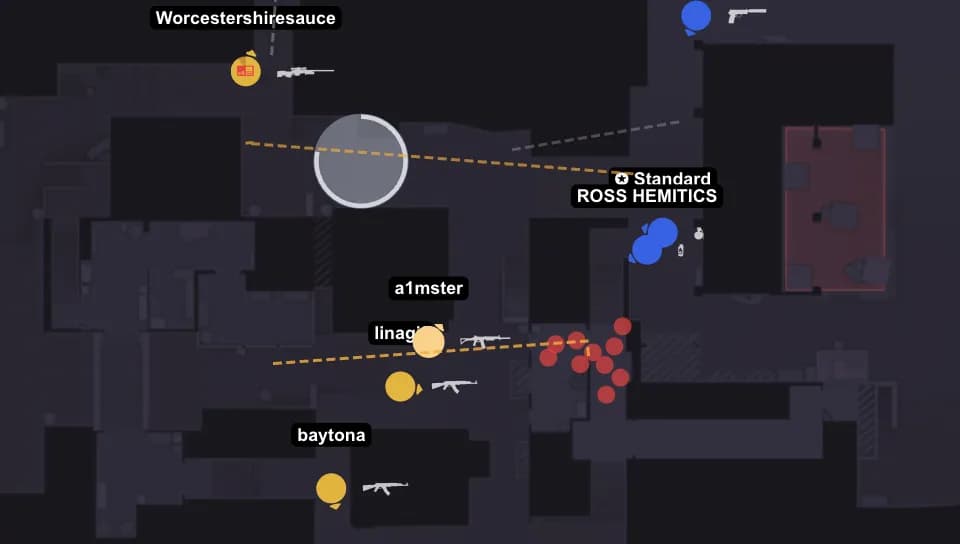
How to Read Heatmaps
Getting the most out of heatmaps requires knowing what to look for. Here are practical tips:
- ►Bright red zones indicate high concentration — these are your hotspots for that metric
- ►Compare your kill heatmap vs death heatmap: if a zone has high kills AND high deaths, you're trading effectively but taking too many risks
- ►Use player and team filters to isolate specific patterns — your positioning may differ from your teammates'
- ►Filter by round type (pistol, eco, full buy) to see how your positioning changes with economy
- ►Look for empty zones on your kill map — these are areas you rarely play and might be missing opportunities
Using Heatmaps to Improve
Heatmaps aren't just pretty pictures — they're actionable improvement tools when used properly.
Frequently Asked Questions
How are heatmaps generated?▼
GetReplay records every player position, kill location, and damage event from the demo file. These coordinates are projected onto the 2D map and aggregated into intensity zones.
Can I filter heatmaps by player or team?▼
Yes — you can filter by individual player, team, or view all players at once. This lets you compare positioning between teammates or opponents.
What maps are supported?▼
GetReplay supports all active-duty CS2 maps including Mirage, Inferno, Dust2, Anubis, Nuke, Ancient, and Vertigo.
Can I see heatmaps for specific rounds?▼
Yes — round filters let you isolate any round or set of rounds. This is useful for analyzing eco rounds vs full buys or specific halves.
Explore more features: