Demo analysis
How to Watch a CS2 Demo (.dem) — 3 Easy Ways
Three ways to watch a CS2 demo and open a .dem file — the playdemo console command, the in-game Watch menu, or an instant browser replay with GetReplay.
Updated September 27, 2026
You downloaded a CS2 match, ended up with a .dem file, and now you want to actually watch it. A .dem isn't a video — double-clicking it does nothing useful — so this guide covers the three real ways to open and watch a CS2 demo: the in-game console, the Watch menu, and an instant browser replay with GetReplay.
What is a .dem file?
A .dem file is a recording of a Counter-Strike 2 match — every position, shot, and grenade, stored as game data rather than as pixels. That's why no media player can open it: it has to be replayed by something that understands CS2, either the game itself or a demo viewer that parses it.
There are two common kinds:
- GOTV demos — server-side recordings you download from matchmaking, FACEIT, or a tournament.
- POV demos — your own first-person recording, made with the
recordcommand in game.
Where CS2 stores demos
If you're not sure where your file is, this is the default location on Windows:
- Downloaded / GOTV demos:
…\Steam\steamapps\common\Counter-Strike Global Offensive\game\csgo\replays - POV demos you made with
record: thegame\csgofolder (one level up fromreplays).
To get a matchmaking demo in the first place, open CS2 → Watch → Your Matches, pick a recent game, and hit Download.
Method 1 — Watch in CS2 with the console
The classic way, and the one people mean by "playdemo".
- Enable the console: Settings → Game → Enable Developer Console = Yes.
- Press
~to open it. - Type
playdemowith your file name. For a file in thereplayssubfolder, include the prefix:
playdemo replays/your-demo-name
If the demo sits directly in game\csgo, drop the prefix and just use playdemo your-demo-name.
Method 2 — The in-game Watch menu
Don't want to touch the console? You don't have to. Any GOTV demo you've downloaded — plus your recent matches — shows up under Watch in the CS2 main menu. Select the match and press play, and the game loads the demo with the same controls as above. It's the simplest route when the demo is one of your own matchmaking games.
Method 3 — Watch instantly in your browser with GetReplay
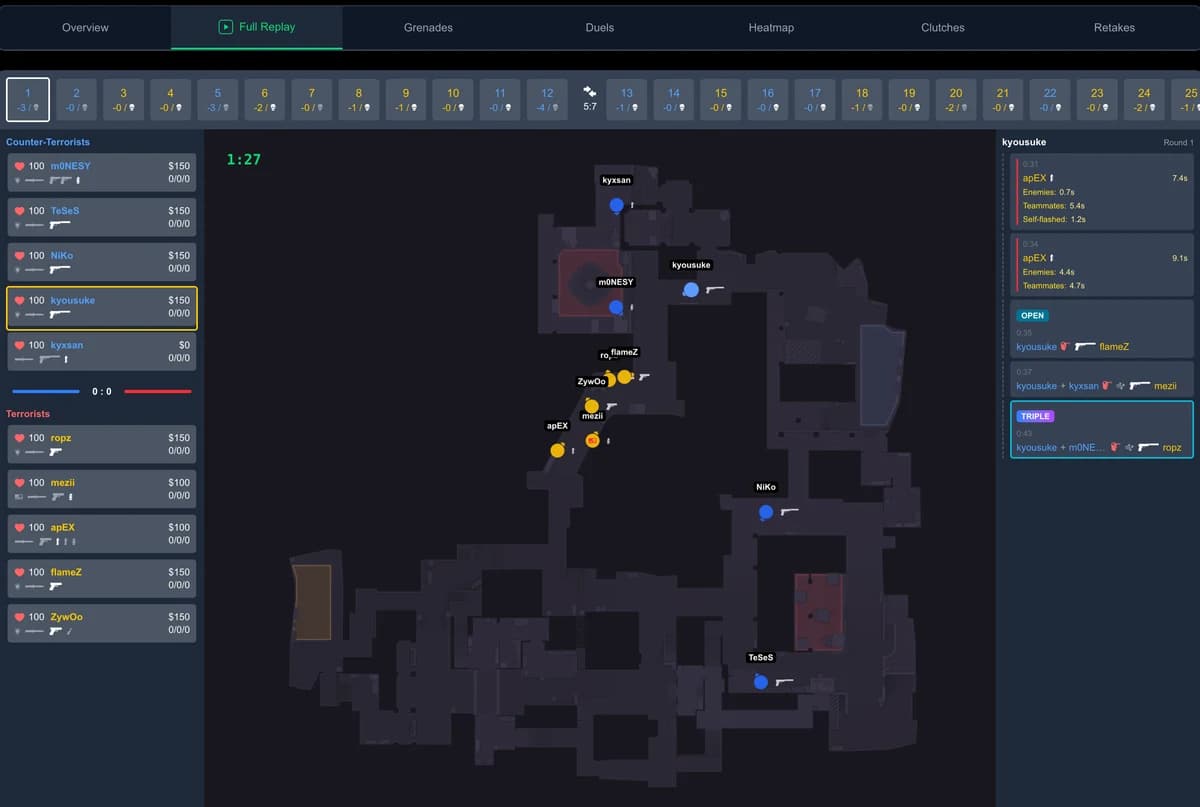
The fastest option skips the game entirely. With GetReplay you open a .dem in a browser-based 2D replay — no download of the demo into CS2, no launching the game, and it works on any device.
Upload the file (or open a shared link) and you get a top-down view of the whole round: player positions, movement, kills, and utility, with a timeline you can scrub round by round.
On desktop, Chrome Web Store extensions can be installed in Chrome, Microsoft Edge, Yandex Browser, Opera, Brave and Vivaldi.
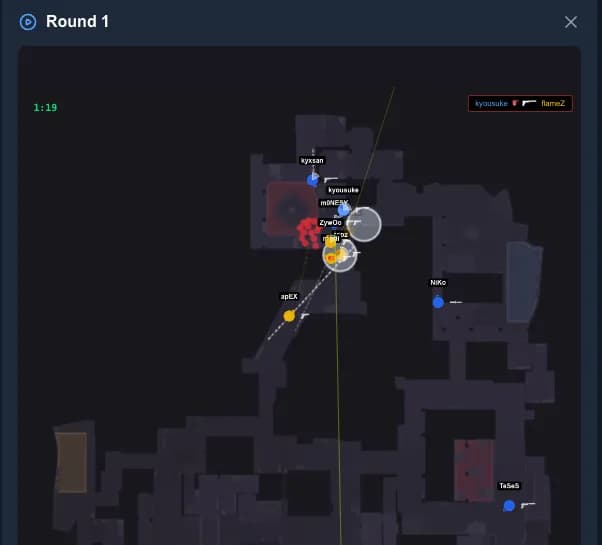
Because it's built for review rather than free-cam spectating, it's the quickest way to find a specific round, check a duel, or share a moment with a teammate. Try it on a sample match before uploading your own.
Not sure the review itself is worth the time? See what you actually get from watching your own demos.
Fix common demo problems
playdemodoes nothing — the developer console is probably off, or the file name/path is wrong. Re-check thereplays/prefix and that the name matches the file exactly.- The demo won't play after a game update — GOTV demos can break when CS2 patches. Re-download the match, or open it in GetReplay, which parses the file directly instead of replaying it in the current game build.
- You can't open the
.demoutside CS2 — that's expected. It isn't a media file. Load it in CS2 or in GetReplay.
FAQ
How do I open a .dem file?
A .dem is a CS2 match recording, not a video. Open it in CS2 with playdemo, from the in-game Watch menu, or in your browser with GetReplay. No standard media player can play it.
How do I watch a CS2 demo without the console? Use the Watch menu in the CS2 main menu, or open the demo in GetReplay. Both avoid typing any commands.
Where are CS2 demos stored?
Downloaded and GOTV demos live in …\game\csgo\replays; demos you recorded with record are in game\csgo.
Can I watch a CS2 demo in the browser?
Yes. GetReplay plays a .dem as a browser-based 2D replay with no download into the game — then you can dig into the match stats.